 Lyapunov documentation
LYAPUNOV · DOCUMENTATION
Use natural language, 3D and simulation in one workspace.
Peiri is the global language-model service; Pontryagin is the backend world-model service.
Lyapunov
Linux x64 · 0.1.0α · Apache-2.0
| Publication metadata | Value |
|---|---|
| Technical version / releaseId | 0.1.0-alpha.6.1 |
| Documentation edition | 2026-10-07 |
| Author team | Mingjun Cheng; Zongjian Ding; Yudong Gao; Yi Yang; Lidong Chen; Jiale Liu; Xinling Yu |
| Produced by | Vorynel Co., Ltd. (杭州奇异宇宙人工智能有限公司) |
| Sponsored by | UAD(浙江大学建筑设计研究院有限公司) |
| Copyright | © 2026 Vorynel Co., Ltd. |
| Project license | Apache License 2.0 · Retained notices |
| Source repository | ManfredCh/Lyapunov |
We thank UAD — The Architectural Design & Research Institute of Zhejiang University Co., Ltd. (浙江大学建筑设计研究院有限公司) for the support that made the development of Lyapunov possible.
Lyapunov is an LLM-first, 3D-native robotics and agent desktop framework, produced by Vorynel Co., Ltd. (杭州奇异宇宙人工智能有限公司). For robotics developers, simulation/research teams and 3D creators, it brings scene construction, robot preparation, controlled simulation and camera data into one workspace. Chat, code, files, the 3D viewer, and physics share one desktop workspace.
Lyapunov builds on DSH's “everything-is-a-plugin” architecture and uses Cordis's composition mechanism to integrate tools and capabilities. We thank the authors and contributors of DSH and Cordis; the Cordis design is described in A Programming Paradigm for Spatiotemporal Composability.
Release channel: Linux x64 Alpha. The installation page and its release manifest are the authority for release identifiers, downloads, and system requirements. This repository contains the product source; the release notes describe this Alpha's changes and known limits.
Install · First run · Robots and cameras · Installation guide / 安装手册 · Release notes / 发布说明
Recommended workflow: ask the agent to use native product tools, or use workbench controls. For this Alpha, avoid CUA click automation for scene, robot and simulation work.
Install on Linux
From a regular terminal in your graphical desktop session:
curl -fsSL https://vorynel.com/lyapunov/install.sh | sh
After installation succeeds and reports ready, start Lyapunov separately:
"$HOME/.local/bin/lyapunov"
The default installation prepares MuJoCo and its Python runtime, verifies native physics, and creates a per-user launcher and desktop entry. You can optionally install Isaac Sim or Newton as needed; they are not prepared by the default installation. See Physics engines and optional runtimes. Node.js, Electron, and the pinned DSH runtime are included in the main archive; the default installation downloads MuJoCo and Python into a dedicated environment inside that version. The default installer and packaged launcher do not depend on Node, DSH, or Python from PATH, or on a developer’s source checkout. User sessions and credentials use the product data directory across upgrades. You do not need a system Node.js, DSH, Python, pip, Conda, Bun, or a model key to install it.
The installer keeps versions under ~/.local/share/lyapunov/versions/, switches the current link only after its checks pass, and leaves older versions and user data in place. If ~/.local/bin is on your PATH, you can launch with lyapunov; otherwise use the absolute command above. See the installation page for download sizes and published release identifiers.
To read the script first, or choose a published version:
curl -fsSL https://vorynel.com/lyapunov/install.sh -o lyapunov-install.sh
less lyapunov-install.sh
sh lyapunov-install.sh --help
sh lyapunov-install.sh
--version RELEASE_ID selects a published release. --prefix /absolute/install/path and --bin-dir /absolute/bin/path customize its location. Spaces in the install prefix are supported; a prefix containing a single quote (') is rejected for the default MuJoCo runtime. Manual archives, checksums, updates, rollback, and removal are covered in the installation guide.
First run
- Open Lyapunov. The welcome page lets you choose a language and theme.
- Choose Sign in, complete website authorization in your browser, and return to the same application window. The workspace opens after the account is verified. To use the website's model service, first register an account and top up Credits. Signed-in model calls use Peiri and the account's central Credits.
- To work locally, choose Try as guest. Guest opens an independent local workspace without connecting to product servers, including the product account or billing backend. Files, scene editing, the viewer, and locally installed tools remain available. Guest starts with no default model; configure your own provider explicitly in model settings to use an agent. Guest does not use Peiri, product billing, or central Credits.
- Create or open a project, then add assets from your files or the local resource library. Guest projects remain separate from signed-in projects; export a guest project and explicitly import it after sign-in when you want to move it.
The account page and settings expose the actual connection, model, and engine state. Provider credentials belong to the provider you configure; the application does not supply credentials for external services, which retain their own usage and billing terms.
Work in one place
| Task | Workspace tools |
|---|---|
| Build a scene | Import GLB, supported Gaussian representations and native robot documents; use the conversion/preview routes below for other inputs. Select, transform, save and reopen Scene entities. |
| Work with code | Browse and edit files, search, inspect Git changes, and use the terminal alongside the agent. |
| Prepare simulation | Review the selected engine, robot controls, model dependencies, placement, and collision geometry before initialization. |
| Control a robot | Execute supported joint, gripper, vehicle, lift, gait, or body-wrench controls; stop execution and inspect actual world feedback. |
| Observe and collect | Use scene cameras, named engine cameras, RGB-D capture, calibration, annotations, recording, and dataset export where the selected engine supports them. |
| Add external tools | Configure Blender, optional physics engines, policy runtimes, reconstruction, or generation tools as needed. Their own software, models, licenses, and service access still apply. |
Robots and cameras
Use the same preparation sequence across robot families: prepare → initialize → ready → explicitly execute. Select the robot and engine, inspect the available controls and dependencies, place the robot and environment, initialize physics, then run a bounded action and inspect the result. A model can be visible before its physics world is ready. Humanoids, quadrupeds, arms, vehicles, hands, and drones use different control mappings; importing G1 does not automatically stand it up or establish every whole-body behavior.
Prepare the world while it is paused, then explicitly start an action. A pretrained policy requires preparation and matching to the robot before explicit execution. A geometric gait command is separate from getting up and does not establish stable walking.
A visual asset and its collision geometry have separate roles. Add or prepare collision geometry appropriate to the scene before expecting physical contact. For a reconstructed room, use geometry aligned with the room rather than treating the entire room as a solid box. Check the actual world response after scene edits are applied.
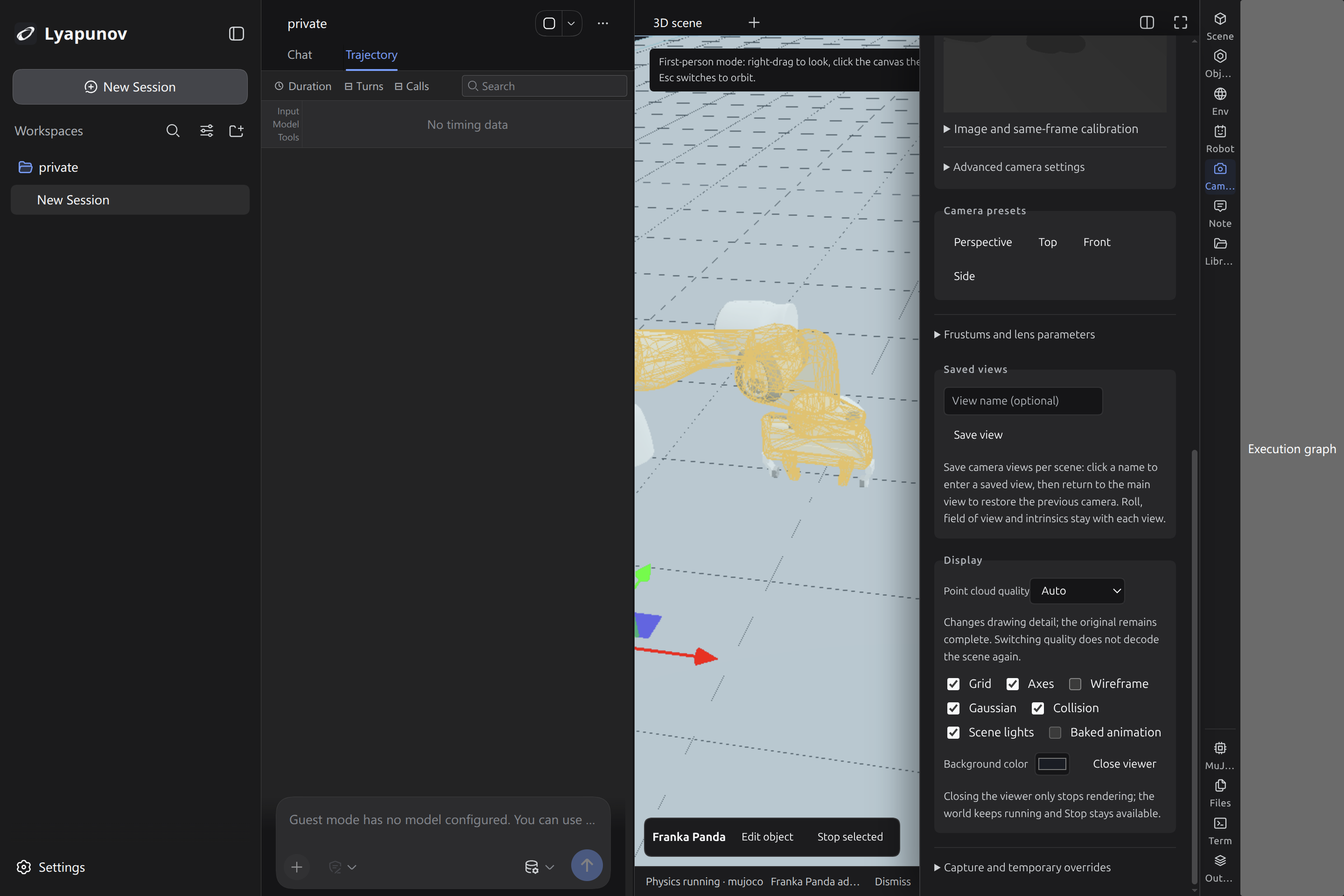
In the camera panel, use Enter camera or Enter and follow camera for a scene camera. Saved views enter an existing named view. Return to main view restores the main view; Esc also leaves a locked camera view. These viewer views and the engine's sensor captures have separate controls.
For free navigation, choose the viewer's first-person mode and click the canvas: W/A/S/D move horizontally, Q/E move down/up, Shift increases speed, and the right mouse button looks around. When the canvas loses focus, movement stops; Esc returns to orbit mode. These keys navigate the camera. Robot execution uses the robot controls or explicit agent actions.
The capability matrix and camera guide describe engine-specific support and its recorded evidence.
Build environments and objects
Environment methods
- World scene generation: ask the agent in a single sentence to generate a world scene as a 3DGS environment using a world model, and to help prepare GLB collision geometry aligned with it. Current server compute is limited, so availability windows and generation volume are limited; speed and capacity will be evaluated according to demand.
- Geometry and scripts: construct measured floors, walls, openings and assemblies with Blender or parameterized scripts; retain editable sources and derived assets.
- Imported environments and Gaussian representations: inspect scale, axes, orientation and dependencies. A Gaussian visual scene needs separately aligned physical geometry for contact.
- Photo, multi-view or drawing reconstruction: an optional external-method route requiring its own tools, data and output checks. External service connectivity and reconstruction results are not accepted by this Alpha description.
- Editing and physical derivation: edits create Scene revisions; prepare static/environment collision geometry, apply it to the current world, and inspect the actual result. Finite surface thickness and budgets can affect narrow openings.
Object methods
Use Blender for controlled geometry/materials and GLB export, parameterized scripts for repeatable geometry, or reuse a source asset. Configured service-assisted modeling is an optional method; verify its real connection, licensing and result before use. No particular generation model or supplier is a default modeling requirement or a signed success claim here.
Input formats and routes
Choose an input route, not just a filename extension. Visual registration, preview, conversion, native engine import and compatible policy execution are separate stages.
| Route | Input | Handling and limits |
|---|---|---|
| Direct scene mesh | .glb | Register a mesh with its buffer/texture closure; verify physics separately. |
| Acquire/assemble to GLB | .gltf + .bin + textures | Local import acquires and assembles a self-contained GLB, then mounts it. The raw Scene parser does not directly read .gltf; workspace preview is also available. |
| Native robot document | .xml / .mjcf | A valid robot/MuJoCo document with include, mesh and texture closure; engine and control readiness remain separate. |
| Native robot document | .urdf | Register the description and dependencies; verify visual, engine and actuator compatibility. |
| Gaussian scene representation | .ply with Gaussian properties | Gaussian/splat input identified by header/properties; it does not provide collision automatically. |
| Preview/explicit conversion | .ply mesh or XYZ data | Content-specific workspace handling; no general ordinary-PLY mesh/XYZ direct-import promise. |
| Scene splat input with decoder conditions | .spz / .splat / .sog / .rad / .ksplat | Register a splat representation; content checks and an appropriate decoder still apply. |
| Blender conversion | .obj + .mtl/textures | Keep source/material dependencies, convert to GLB, then mount. File preview does not prove physics compatibility. |
| Blender conversion | .fbx | Validate actual source/header and textures, convert to GLB; report missing materials. |
| Source project/Blender conversion | .blend | Preserve the project; inspect external textures/linked libraries and export GLB. |
| Source/conversion or conditional native engine | .usd / .usda / .usdc | Source registration and Blender conversion/preview; native Isaac use requires its SDK/SBL and actual native support. |
| File preview/Blender conversion | .usdz | Workspace conversion preview/export; outside the direct Scene source-registration list. |
| File preview/convert before Scene use | .stl / .dae / .3mf / .vtk | Workspace preview; STL may also be a robot dependency, which does not make all standalone formats direct Scene inputs. |
| Export from authoring application | .max | Export FBX with materials or GLB from 3ds Max; renaming the extension is not conversion. |
| Environment lighting source | .hdr / .exr | Use through the environment/lighting path, not as ordinary body geometry. |
| Reference image/attachment | PNG / JPEG and other images | Reference for inspection/reconstruction; separate measured dimensions from inferred content. |
| Drawing inspection/external conversion | .dxf / .dwg / .pdf | DXF parsing; DWG needs an explicit converter; vector/scanned PDF paths differ. A drawing without scale is not a measured model. |
| Policy bundle preparation/matching | .pt / .pth / .jit / .torchscript / .onnx / .safetensors / bundle.json | Unknown weights receive format preflight only, not a verified execution graph. Require dependency/adapter, joint, observation, rate and engine matching before explicit execution. |
| Project open/portable package | scene.json / .scene-package.json / portable project directory | Use the project contract and complete resource closure; arbitrary ZIP files are not guaranteed projects. |
Robot sources, compatibility and bounded control
Prefer native MJCF/URDF where supported. Keep includes, meshes, textures and actuator definitions together; match axes, units, joint order/limits, actuator mapping, dt/control rate, observation semantics and the chosen engine. Downloads, PREPARED and MATCHED are preparation facts. Execute a requested, bounded action only after readiness, then inspect state and stop confirmation.
Multiple robots can share a Scene/world and a bounded batch action. Read each robot's result under the same world/generation; shared timing and one batch request do not establish arbitrary heterogeneous cooperation or fleet-task completion.
MuJoCo position servos can accept position references directly. A source torque motor needs explicitly declared controller gains (jointKp/jointKd, or scalar kp/kd) or a compatible policy before accepting a position target; the worker does not invent gains or drive readings. Keep the world paused until the selected control path is ready.
A fixed base attached to another entity uses the target body's native parent-child assembly and local installation pose. Invalid, self-referencing and cyclic targets are rejected. Explicit world or body anchors remain unchanged; automatic support-plane adjustment applies only to an unanchored source-fixed default installation and reports its measured correction.
Cameras, annotations and editable feedback
A world-fixed camera uses a world pose. A body/parent-mounted camera uses a local installation pose and follows the actual parent body. Use Save current view installation to persist the current camera installation and Restore installation baseline to restore it. Enter camera / Enter and follow camera and Return to main view control the camera view; saved Viewer views do not replace native calibration.
MuJoCo and Isaac provide named-camera list/adjust paths; sensor capture requires the real rendering backend, and Isaac RGB-D needs actual RTX. Newton currently reports these camera interfaces as unsupported. For RGB-D, inspect camera name, resolution, K, worldFromCamera, meter depth, captureId and frame/Scene/world provenance. A visible environment does not by itself establish aligned collision geometry.
Add an annotation to the current entity/view or a registered capture, edit its position/text, save it and reopen it. Project a pixel into 3D only with real depth and calibration. Send annotated observations to the agent as a reference; requested geometry changes use native Scene edits and revision checks. Annotation edits themselves do not silently change geometry or physics. Export actual captures, annotations and datasets with their references.
Four starting workflows
These are instructions and readback criteria, not claims that the final package has run every example. For natural-language requests, sign in or configure your own provider in Guest; manual workbench controls remain available.
| Workflow | Start with | Check before calling it complete |
|---|---|---|
| Ground and box in MuJoCo | Static ground, dynamic box, ready managed SDK | Actual engine/world/revision, bounded steps and real position/contact readback. |
| Panda joint/TCP inspection | Native model and complete dependencies | Controlled joint/limit/state, stop confirmation and actual TCP information; an IK plan and execution are separate. |
| Camera and annotation capture | Synced scene, supported camera and renderer | Same-frame RGB-D/K/depth identity, editable saved annotation and real export references. |
| Indoor collision alignment | Indoor visual asset and aligned static geometry | Actual wall contact and empty-space control, voxel pitch/budget and scene-specific clearance. |
Read the step-by-step quickstart (简体中文) for inputs, action order, example requests and output checks.
Physics engines and optional runtimes
The standard installation prepares MuJoCo. Engine selection is visible in settings: explicit choices take priority; automatic selection may choose Isaac when its SDK, accepted license, and required accelerator are available, otherwise it selects MuJoCo. Changes take effect at the next workspace start.
Isaac Sim, Newton, policy runtimes, and official benchmark suites are separate downloads:
"$HOME/.local/bin/lyapunov" doctor mujoco
"$HOME/.local/bin/lyapunov" install-provider newton
"$HOME/.local/bin/lyapunov" install-provider policy-cpu
For Isaac, read the NVIDIA Omniverse license before explicitly accepting it:
"$HOME/.local/bin/lyapunov" install-provider isaac --accept-omniverse-eula
An installed SDK, a ready physics world, and a successful robot task are different results. Newton consumes supported Scene collision from ordinary GLB assets alongside native MJCF/URDF sources; static OBJ retains triangle surfaces, dynamic OBJ uses prepared convex parts, and physics changes are synchronized to the world. Robot actions, general contacts/penetrations/topology, camera capture and collisionPatches remain unsupported. Optional models and policy weights are fetched only when selected. Hugging Face Hub access uses https://hf-mirror.com; missing mirrored files, revisions, permissions, or failed checksum verification are reported as blocked.
Update and troubleshoot
Quit Lyapunov and rerun the same installer to update. Each published release has its own directory; previous records the former current version. User data lives outside the installation directory, in Electron's platform user-data directory by default, or at the explicitly configured LYAPUNOV_DESKTOP_DATA_DIR. Export important projects or copy that data directory while the application is closed before changing versions. Switching application versions does not restore a previous data layout; rollback details and uninstall commands are in the installation guide.
Start with the actual diagnostic output:
"$HOME/.local/bin/lyapunov" --version
"$HOME/.local/bin/lyapunov" doctor mujoco
The same installer prepares missing desktop libraries on supported Ubuntu/Debian systems and configures this version's Chromium sandbox when needed. It requests normal system authorization through the terminal and continues automatically after authorization; no separate setup command is needed. If a desktop/sandbox check remains blocked, it prints the exact installed version path and remedy, retains the verified files, and leaves that version inactive. CONTEXT_ONLY means that the current terminal's security context could not establish desktop readiness; repeat the check in a regular desktop terminal. PROVIDER_UNAVAILABLE names a missing or incompatible SDK; inspect the selected engine and any saved external Python path. The installation guide includes log locations and further recovery steps.
TODO
- [ ] Native macOS (Apple Silicon/x64).
- [ ] WeChat mini-program / mobile: authenticated remote tasks, cameras, and stop controls.
- [ ] Genesis.
- [ ] VR/XR input and coordinates.
- [ ] DSH companion upgrades (pinned upstream revision).
Windows evaluation route
Windows is a proposed Linux package under WSL2 + WSLg route, not a native Windows executable. Microsoft's GUI-app prerequisites specify Windows 10 build 19044+ or Windows 11, WSL2/WSLg and an appropriate GPU driver. In administrator PowerShell:
wsl --install
wsl --update
Complete the distribution setup, then use its Ubuntu/Linux terminal:
curl -fsSL https://vorynel.com/lyapunov/install.sh | sh
After installation succeeds and reports ready, start Lyapunov separately:
"$HOME/.local/bin/lyapunov"
Keep the installation and data in the Linux filesystem. This release has not been accepted on Windows/WSLg or every GPU; follow the Linux package's actual doctor and sandbox results.
Built on an upstream ecosystem
Lyapunov integrates an LLM/3D-first product workspace and its scene, tool, simulation and observation flows. Thank you to DSH and Cordis; MuJoCo; NVIDIA Isaac Sim and IsaacLab; Three.js, Electron, Node.js, React and Blender; and robot vendors, official model libraries and their contributors. Their simulator, rendering and control-model work remains credited to its respective authors and licenses.
Help improve Lyapunov
Share ideas in Discussions, report reproducible problems in Issues, and contribute through Pull requests. For direct support, email voryneltech@gmail.com. Include the version, minimal steps and privacy-clean diagnostics/screenshots; keep keys, sessions and private customer content out of reports. See contribution workflow.
Develop and contribute
This source repository builds the product on a pinned DSH revision. Development requires Git, Node.js 24+, Bun 1.3.13, and pnpm 11.7.0; the packaged installation above supplies its own runtime.
git clone https://github.com/ManfredCh/Lyapunov.git
cd Lyapunov
export HF_ENDPOINT=https://hf-mirror.com
node script/bootstrap.mjs
See the development guide and standards and checks for developer account setup, model configuration, source startup, builds, and validation. The release notes describe this Alpha’s feature scope. Account and deployment services are maintained separately from this client repository.
The project-owned Lyapunov code is licensed under the Apache License 2.0, copyright © 2026 Vorynel Co., Ltd. The completed project copyright and license declaration is in NOTICE; the LICENSE appendix retains Apache's standard example for applying the license. Use, modification and redistribution follow Apache 2.0, without additional monthly-user or revenue thresholds. Existing published archives retain their original bytes and historical license notices; future packages will carry the updated LICENSE and NOTICE. The existing OpenCode MIT copyright and permission notice is retained in NOTICE. Individual packages, bundled DSH/Node/MuJoCo components, robot assets, model weights and external services retain their respective licenses.